Create application
Create a new application
The Core Platform dashboard is the preferred way to create a new application. It creates:
- A new repository
- A template application demonstrating full continuous delivery:
- Versioning
- Functional testing
- Non-functional testing
- Promotion between a set of standard environments
- Deployment to production
Where native application creation is enabled in your selected Context, completing the wizard opens a saved progress page and starts the initial delivery workflows automatically. Legacy creation follows a separate configuration flow; the automatic sequence and recovery controls below apply only to native creation.
Using the dashboard
Open the dashboard and go to Applications then Create.
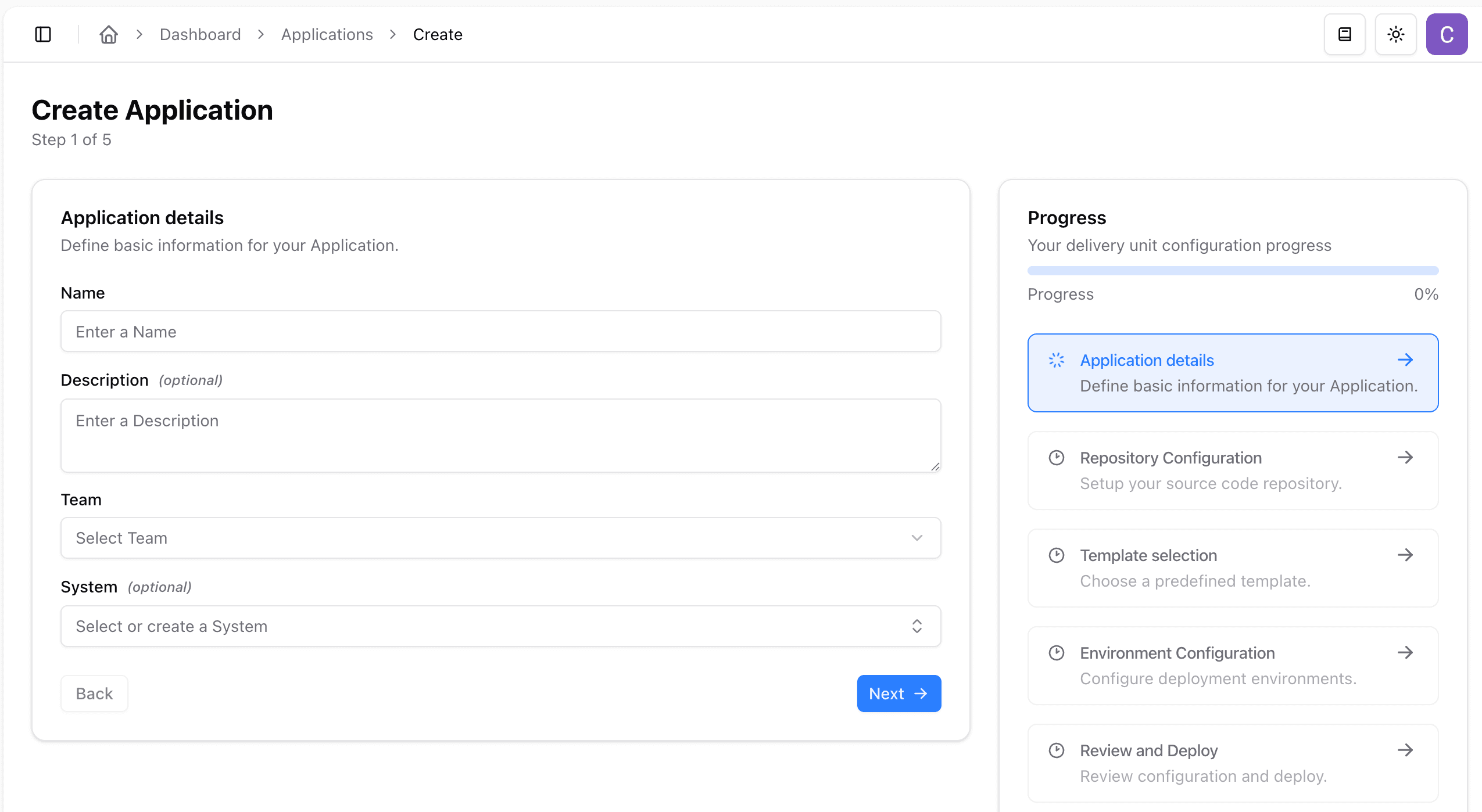
First, enter the application details. In a native Context, team selection is optional and starts unselected. If no teams exist, the wizard omits that field; you do not need to create one first. When teams exist, you can select an owning team. Legacy creation still requires one. If your organisation uses systems, choose the system the application belongs to.
An application created without a team receives no additional human Kubernetes access. You still need a managed cluster, a GitHub connection and explicit deployment targets; existing deployment pipeline permissions are unchanged.
In the native creation wizard, you can enter these details while GitHub repository options load in the background. On Repository Configuration, choose the organisation and repository name. You cannot continue past this step or submit until repository options have loaded successfully. If loading fails or returns no repositories, check your GitHub integration and select Retry; your entered details are retained.
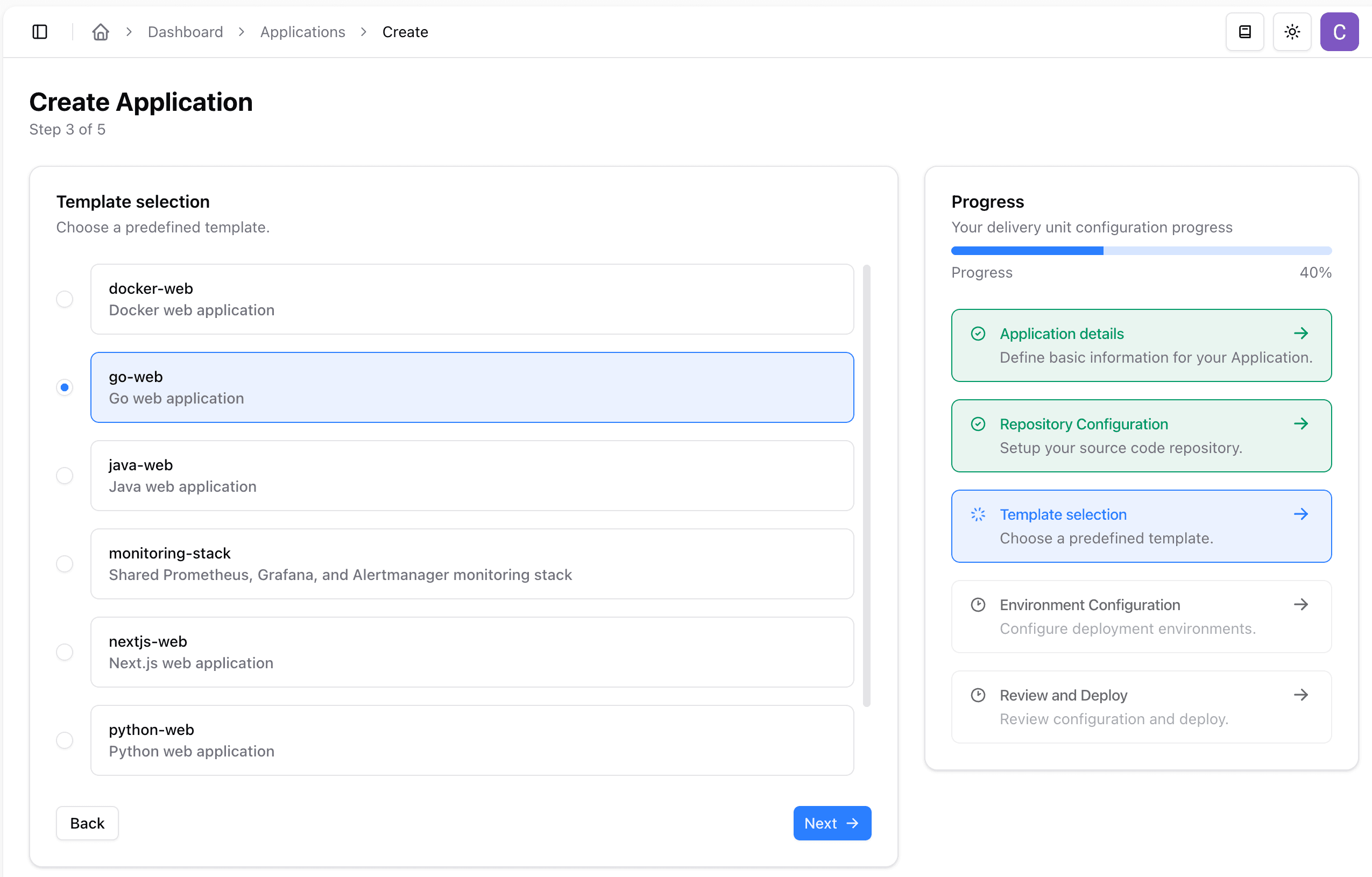
Next, choose the template. Application templates include the repository structure, sample app code, and Path to Production workflow defaults for common application types.
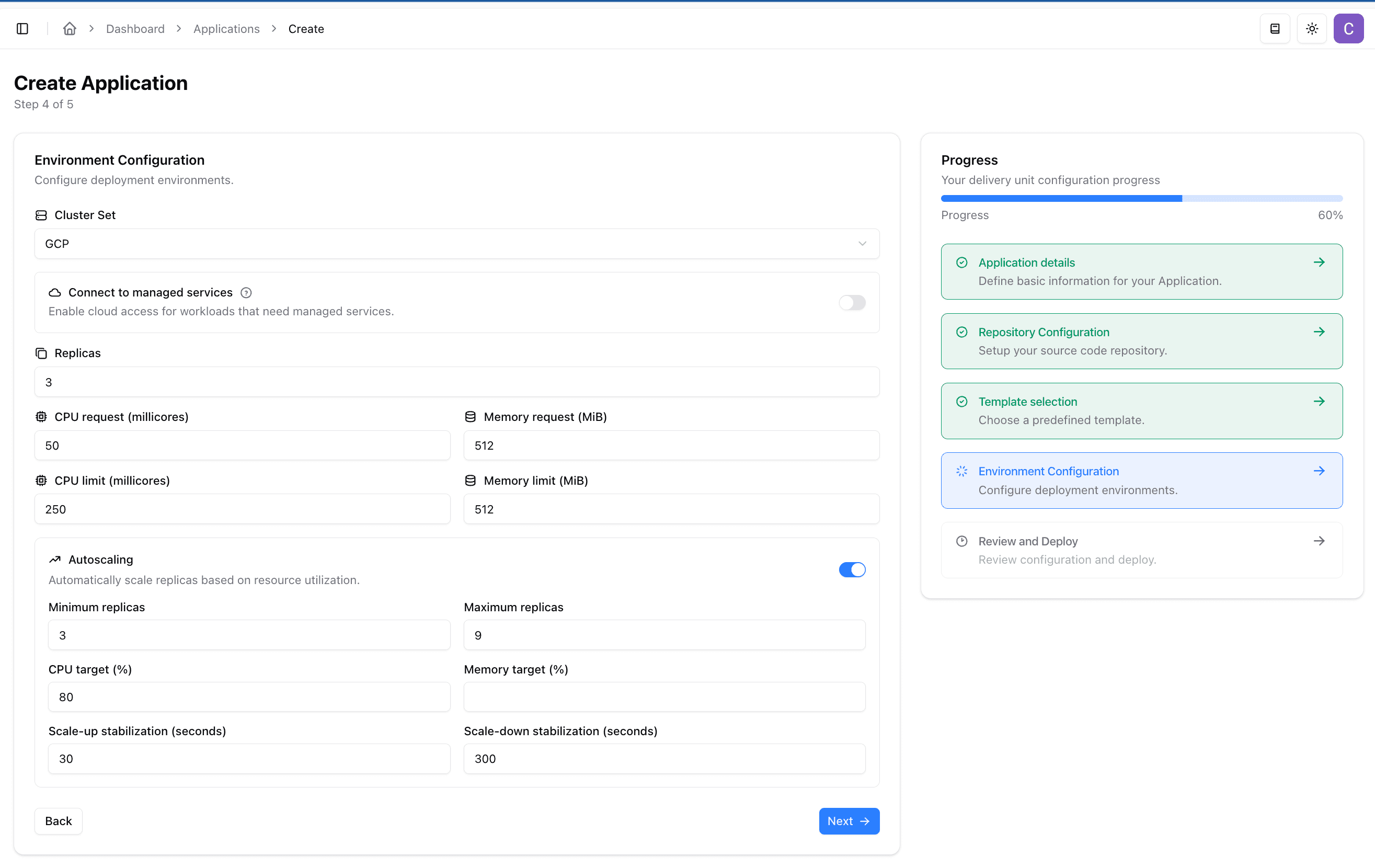
Then configure the deployment environment. Select the cluster set, choose whether the workload needs managed service access, and set replicas, resource requests, resource limits, and autoscaling defaults.
In native creation, Ingress starts from the selected template’s defaults. Supported templates enable Portal access, giving Context members an HTTPS URL after deployment. You can disable it. Public is currently unavailable. See application ingress for access and troubleshooting.
Review the generated configuration, then deploy it. The dashboard creates the repository and configuration change needed for the application to start using the Core Platform delivery workflow.
Application names must be lowercase because Docker image names require lowercase letters.
Native creation progress
The progress page tracks fourteen stages, in order:
- Prepare template
- Create repository
- Populate repository
- Commit catalogue entry
- Awaiting Cluster Deployment
- Configure repository
- Start Fast Feedback workflow
- Fast Feedback workflow
- Start Extended Test workflow
- Extended Test workflow
- Start Production workflow
- Production workflow
- Start Security Scan workflow
- Security Scan workflow
Each stage must succeed before the next starts. The dashboard waits for provisioning evidence and workflow results, rather than treating repository creation or workflow dispatch as completion. Keep the progress link to return to the same operation.
Recover blocked native creation
Only an administrator in the selected Context can recover an eligible blocked stage. Recovery continues the same operation using its saved checkpoints: completed successful stages are retained, not restarted. The stage-specific confirmation dialog requires a recovery reason for the audit record.
- Check provisioning again observes the same cluster generations; it does not recreate infrastructure.
- Check run again observes the existing recorded workflow run; it does not start another run.
- For a known failed workflow, Retry Fast Feedback, Retry Extended Test, Retry Production deployment, or Retry Security Scan starts a fresh run for the original generated commit, not newer application code. A Production retry requires confirmation that it starts another production deployment of that commit.
If the outcome of a repository creation or workflow start is unknown, the write may already have succeeded. Investigate the diagnostic guidance before attempting more work; recovery cannot automatically attach an unknown repository or run identity.
If you are not a Context administrator, share the progress link with one. See blocked native application creation for prerequisites, unknown outcomes, and safe refresh behaviour.
Developer workflow
Now you have an application deployed to production. You can make changes by raising PRs.
Raise a PR
Raising a PR will automatically build the app, push the docker image, and deploy it to environments for functional, non-functional, and integration testing.
Merge the PR
Merges to main by default do the same as a PR, and additionally deploy to a stable dev namespace that can be used for showcasing or integration testing.