Onboarding
In a native Context, you can create an application after connecting a managed cluster without first creating a team. Create teams when you want explicit ownership and configured access groups. Legacy setup continues to require a team.
If you already have a team, you can jump to new-app to deploy a new application.
Create a team in the dashboard
Open the dashboard and go to Teams then Create. Enter the team name, description, contact email, and area.
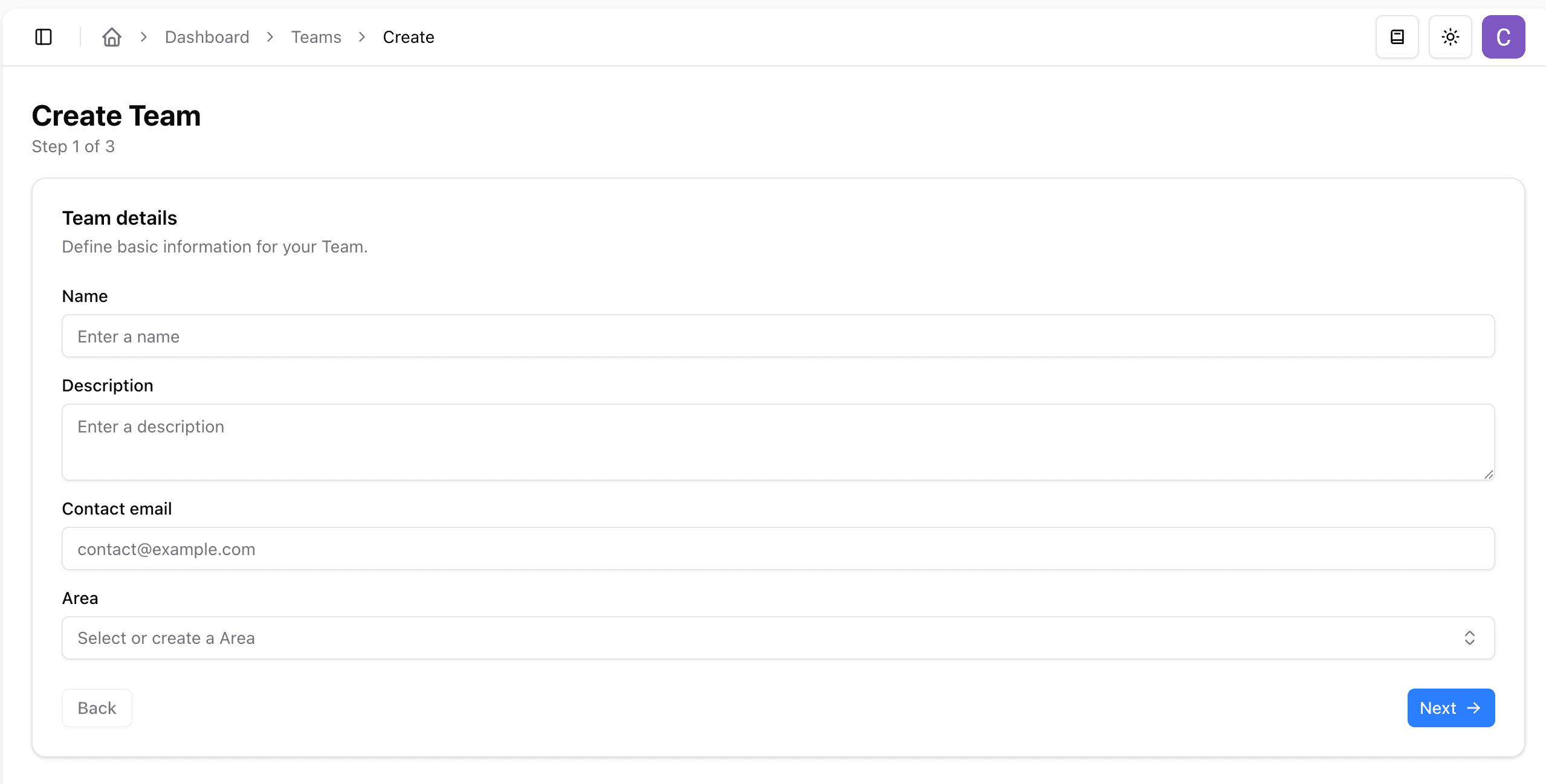
Native team creation defaults to All clusters, including current and future active, managed clusters in the selected Context. Clear the checkbox to select specific clusters. All clusters can be saved before any clusters are eligible; legacy teams continue to use explicit environment selection.
Review and submit, then check provisioning status before using the team. Saving is not confirmation that its namespaces are ready. Configured access groups apply wherever the team is provisioned, including future clusters. Application targets remain unchanged.
Team configuration
Inspect configured access in the Portal
Expand the owning team’s row in the Portal to see Access groups. Open an application and select Details to inspect its configuration and access groups. The names used for teams and applications depend on your Context’s naming configuration.
Legacy records show the default admin and read-only groups alongside the production-specific admin and read-only groups. Not set means no value is recorded for that field; it does not mean access is disabled.
Native teams show one admin/read-only pair across assigned environments. Native application Details shows the same pair, labelled as inherited from the owning team. Separate production-specific groups are not configured for native teams.
Creating a native application without selecting a team adds no human Kubernetes access groups. It preserves existing Context permissions, cluster access and the application’s deployment pipeline permissions.
These read-only views show configured groups, not group membership or proof that access has been successfully provisioned. Broader platform access and inherited permissions can also affect effective access.
Repository-based configuration
For repository-based setup, see Tenancy. The configuration includes:
name- Name of your team. Must be the same as your filename.parent- Name of the parent team/tenant orroot. Note:rootis created implicitly.description- Description for your team.contactEmail- Metadata: Who is the contact for this team?environments- which of the environments in Environments Repo you want to deploy torepositories- if you have no existing applications then leave this empty. If migrating then add the repos with your applications (comma separated GitHub links)adminGroup- will get permission to do all actions in the created namespaces - optionalreadonlyGroup- will get read-only access to the created namespaces - optional
Both adminGroup and readonlyGroup are optional fields.
However, without these set, the secret management feature will not work.
You can still have access to the team’s namespaces by being in the parent’s admin and read-only groups,
as it will inherit permissions to access children’s resources, with the exception of the secrets.
You are encouraged
to use different adminGroup and readonlyGroup for each team because of cloud restrictions and security reasons.
Maximum number of duplicated adminGroup or readonlyGroup is 20.
Submit configuration changes as a PR in the Environments Repo. Once merged, the team configuration is provisioned automatically.
Groups need to be in the gke-security-groups group! If you are a new team on the platform, you should create new
admin and readOnly groups and either ask a platform operator to add them to gke-security-groups or add those groups
to an already existing member of that group like platform-readonly.
Accessing your namespaces
Once the PR is merged, everyone in the groups will have access to the namespaces created for that team.
To access the cluster from your machine, follow Cluster Access.
For example, to check a namespace for a team named myfirstteam:
kubectl get namespace myfirstteam
NAME          STATUS   AGE
myfirstteam   Active   30s