Managing Platform Environments
Use the Core Platform dashboard first when you need to inspect existing infrastructure environments. Use the command-line setup steps later in this page when you are creating or bootstrapping environments.
Environments
The platform by default comes with a single organisation made up of three environments:
- pre-dev: Stage new versions of the platform before releasing to application engineers
- dev: Used for all development environments, functional testing, integrated testing, performance testing
- prod: Production
Check environment health in the dashboard
Open the dashboard and go to Infrastructure Environments. The list view shows each environment’s tier, Core Platform version, cloud platform, region, node usage, CPU usage, memory usage, and pod count.
Node scaling limits are shown only when the cluster has configuration in an environments repository; other clusters show their reported node count without a maximum, percentage, or capacity bar.
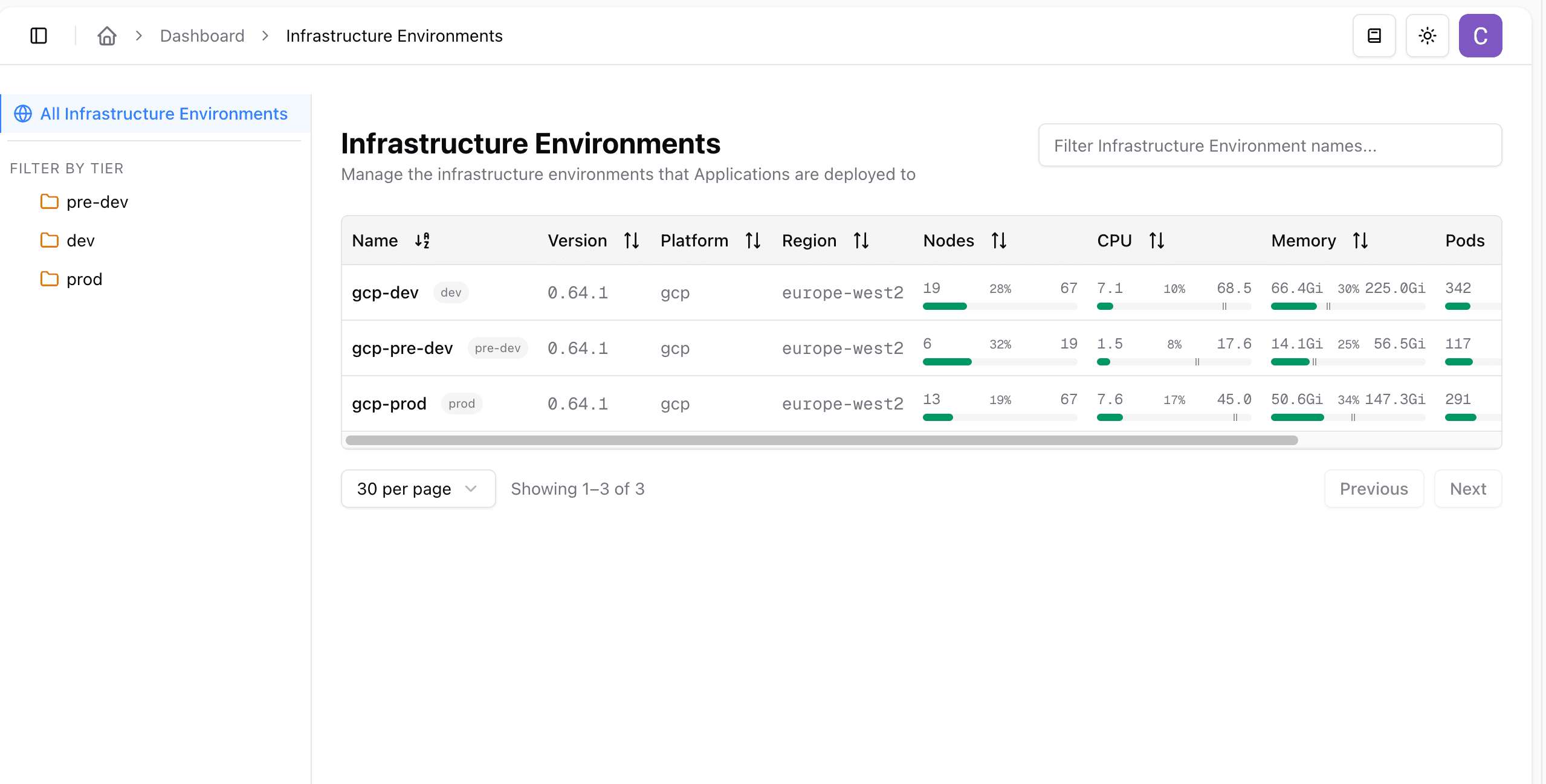
Use this view to answer operational questions such as:
- which environments are connected
- which platform version each environment is running
- whether node, CPU, memory, or pod capacity is trending high
- which tier an environment belongs to
Filter by tier or search by infrastructure environment name when your organisation has more environments.
Connected and Managed describe the cluster’s mode. The status beside it describes current evidence from the agents and, for native managed clusters, the enabled components. A recent heartbeat alone does not establish component readiness.
| Cluster status | Meaning |
|---|---|
| Ready | Required agents are reporting and enabled components have current readiness evidence. |
| Reporting | Required agents are reporting for a connected-only or registered legacy cluster. |
| Progressing | Components are being installed, updated or reconciled. |
| Needs attention | A component is degraded or blocked, or agent reporting conflicts with configuration. Read the named reason. |
| Not reporting | A required agent’s heartbeat is stale. The explanation identifies the agent. |
| Waiting | A required agent has not reported yet. |
| Unknown | Component observations are missing, stale or cannot be verified. |
The list and detail header show the same status badge. Hover or focus it for a summary such as All components are running, or the reason a component needs attention. The tooltip includes agent reporting times only when a heartbeat is stale. Select a component status to open Components with the affected component expanded. During disconnection the status reads Disconnecting.
Verified capabilities provided by an existing external installation satisfy readiness. Their component rows retain Provided externally so ownership is clear. Disabled add-ons do not count against readiness. Missing, unverified or stale observations never count as currently ready.
Connected-only and registered legacy clusters use agent reporting status without requiring native component observations. When both agents on a registered legacy cluster are fresh, the tooltip says Runtime agent and Control agent are reporting. These clusters do not show the native Components view. Catalogue clusters without a connection registration retain their individual agent reporting badges.
Teams targeting all clusters
Native teams configured for All clusters are assigned when a registration is active and management is enabled. Replacement registrations require fresh provisioning evidence; disconnected and connected-only registrations are excluded. Resources already provisioned on excluded clusters are retained.
Complete the API rollout before using All clusters or changing its registrations: older API instances do not maintain automatic assignments. All-cluster targeting alone does not require an agent upgrade.
Creating native applications without selecting a team additionally requires a
compatible API, Control Agent and tenant chart. The platform provisions a hidden
parent with its own default-ou namespace for the existing hierarchy and CI roles,
without human group bindings. Kubernetes’ built-in default namespace is unchanged.
Upgrade those components together before using this creation path. Legacy clusters
do not use either feature.
Drill into a cluster
Select an infrastructure environment to open the cluster detail page. The Nodes tab shows node count, node CPU, node memory, node pod usage, node status, machine type, zone, and conditions.
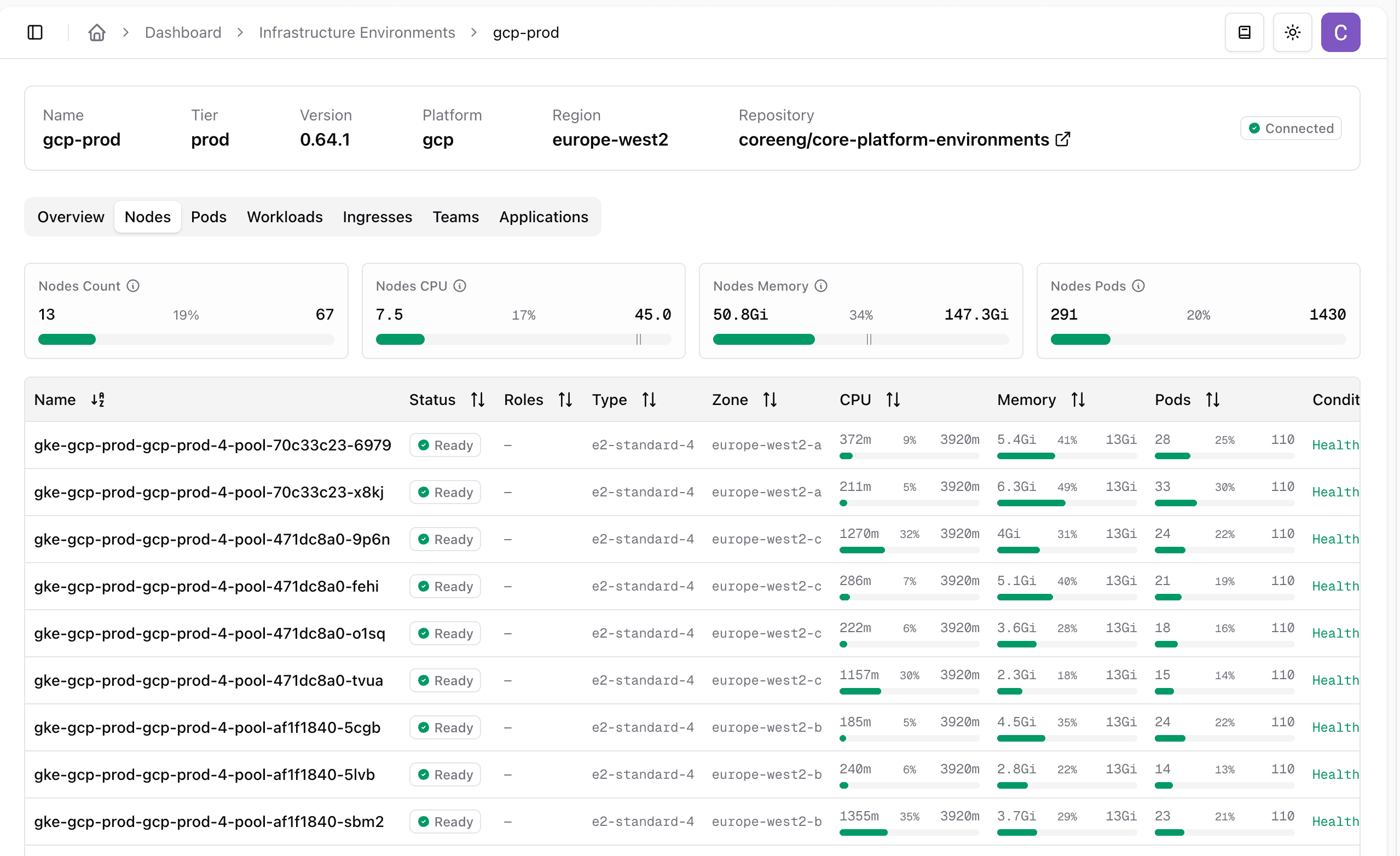
Use this tab before moving to kubectl when you need to quickly identify pressure on a node pool or confirm that nodes are ready.
If you need terminal access after checking the dashboard, configure cluster access, then inspect nodes:
kubectl get nodes
kubectl describe node <node-name>
Inspect managed cluster components
For a native managed cluster, start with Components on Overview. The summary shows reported installation and readiness, highlights components needing attention, and links to the Components tab immediately beside Overview. Component reporting remains useful even when resource usage metrics are missing.
The Components tab has two groups:
- Cluster System: Runtime agent, Control agent, HNC and ArgoCD Core. These are installed and upgraded together through the Cluster System lifecycle.
- Add-ons: Cluster authentication, Cluster VPN, Cluster registry, Cluster vertical pod autoscaling, Cluster observability and Cluster ingress. Control agent manages their desired configuration through ArgoCD Core.
Expand a row to inspect its sub-components and reported evidence. For example, Cluster observability contains Prometheus Operator, Prometheus, Alertmanager, Alloy, Loki and Grafana. A failure in one child affects the parent status, so a ready monitoring operator cannot hide an unavailable log store. Zot and Envoy share a registry workload and one readiness observation; Envoy node proxies are shown separately.
The table shows each component and its status. Row notes identify externally supplied components and disabled components whose installed resources remain. Expanded details show installation state, namespace, resource, replica counts, observation time and versions when reported. A desired package version describes the installation target; it is not proof that the upgrade has completed. View system workloads opens the existing system-workload view for further inspection.
| Status or evidence | Meaning |
|---|---|
| Installed (expanded details) | The report identifies the expected installation and its ownership. |
| Ready | The reported workload and reconciliation checks pass, or an external capability meets its availability prerequisites. |
| Progressing | Installation or rollout has not yet reached the expected state. |
| Degraded or blocked | A reported component or reconciliation check needs attention. Expand the row for the reason. |
| Not enabled | The component is disabled. Retained resources may still be visible. |
| Provided externally | The capability is supplied by an existing installation. Only the available evidence is shown. |
| Unverified | An external installation was detected, but its capability availability could not be verified. |
| Unknown or unavailable | The agent could not establish the current state, or the installed agent does not provide component inventory. |
| Stale | The observation is old. Last-known details remain visible, but do not count as currently ready. |
Externally supplied vertical pod autoscaling is Ready when its API is established, serves the supported version and is reachable, and the resource Metrics API is available. This satisfies the capability requirement without installing another VPA. Provider controllers need not be visible to Core Platform. Expand the row for the verification details. Older Control Agents may still report external VPA as unverified; upgrade Cluster System to report the verified Ready state. A missing component report also does not mean that nothing is installed. Upgrade Cluster System through its existing lifecycle when the installed agent does not support this report.
Readiness describes the checks shown in the report. It does not verify a complete authentication flow, VPN session, image transfer, telemetry query or alert delivery. Component inspection does not provide access to shared observability services or add installation and removal controls.
Gcp init
The gcp-init tool comes bundled inside the platform docker image. From inside the image:
cd gcp-init
source .venv/bin/activiate
python gcp-init.py --help
Creating an organisation
It is expected to have a single organisation, meaning one set of environments.
Before execute core-platform-cli we use any of the commands, we need to generate some Application Default Credentials (ADC):
gcloud auth application-default login
mv $HOME/.config/gcloud/application_default_credentials.json $HOME/.config/gcloud/Platform-user.json
This will generate JSON credentials for your user account, and move them to a file called Platform-user.json in the gcloud config directory. We’ll use this file to authenticate as your user when running certain commands.
Before running root-init, we need to check some GCP permissions. Before we can initialize a “parent” (a GCP org or folder), we need the following:
roles/vieweron the parentroles/resourcemanager.folderCreatoron the parentroles/resourcemanager.projectCreatoron the parent
We can now run the root-init command from within the core-platform-cli:
PARENT_FOLDER=??? # e.g. folders/12345
BILLING_ACCOUNT=??? # e.g. 01BC90-344AF2-CED391
ENV_REPO=???  # e.g. e.g. {{ github-org }}/platform-environments
PLATFORM_ADMIN_GROUP=???
GOOGLE_APPLICATION_CREDENTIALS=$HOME/.config/gcloud/Platform-user.json \
python gcp-init.py root-init \
    --parent=$PARENT_FOLDER \
    --billing-account=$BILLING_ACCOUNT \
    --github-repos=$ENV_REPO \
    --impersonators=group:$PLATFORM_ADMIN_GROUP \
    --owners=group:$PLATFORM_ADMIN_GROUP
This script is idempotent, if you encounter Cloud API failures, you can generally re-run the command and it will only create the missing resources.
If the errors are that your user doesn’t have permissions to do something, that probably won’t be fixed by re-running
Creating an environment
To be able to run the next step command (gcp-init.py env-init ...) we need to generate some new application credentials, allowing us to impersonate the env-manager service account from the previous step:
SA_EMAIL=$(jq -r .env_mgr_sa.email output-root_init.json)
gcloud auth application-default login --impersonate-service-account=$SA_EMAIL
mv $HOME/.config/gcloud/application_default_credentials.json $HOME/.config/gcloud/Platform-env-manager.json
This will generate JSON credentials for the service account, and move them to a file called Platform-env-manager.json in the gcloud config directory. We’ll use this file to authenticate as the SA when running certain commands.
We can now extract some information from output-root_init.json to use as input to the env-init command:
ENV=??? # e.g. dev-2
PLATFORM_ADMIN_GROUP=???
ENV_REPO=???  # e.g. e.g. {{ github-org }}/platform-environments
BILLING_ACCOUNT=???
SHARED_FOLDER=$(jq -r .shared_folder.name output-root_init.json)
ENVIRONMENTS_FOLDER=$(jq -r .environments_folder.name output-root_init.json)
MANAGEMENT_FOLDER=$(jq -r .management_folder.name output-root_init.json)

GOOGLE_APPLICATION_CREDENTIALS=$HOME/.config/gcloud/Platform-env-manager.json \
python gcp-init.py env-init \
    --shared-folder=$SHARED_FOLDER \
    --environments-folder=$ENVIRONMENTS_FOLDER \
    --management-folder=$MANAGEMENT_FOLDER \
    --github-repos=$ENV_REPO \
    --impersonators=group:$PLATFORM_ADMIN_GROUP \
    --name=$ENV \
    --owners=group:$PLATFORM_ADMIN_GROUP \
    --billing-account=$BILLING_ACCOUNT
This will attempt to initialize an environment called dev, as before, the script is idempotent and can generally be re-ran in the face of errors until it has completed.
![WARNING] If the errors are that your SA doesn’t have permissions to do something, that probably won’t be fixed by re-running